

1. Restart the computer
This is a simple but amazing first step, the amount of times a computer being on for many days in a row has caused issues is more than you wuold think.
Press the windows key (if on windows) and press the power button after that select the restart option, after that give it a minute to restart and once the computer comes back, sign in and that’s it. Try the computer again.
Common Mistake
Some people will just close the lid of a laptop or put there PC to sleep, or in some cases lock the computer but this does not actually turn it off or restart it.
2. Check your start up applications
Many people do not realise how many programs start when the computer first turns on
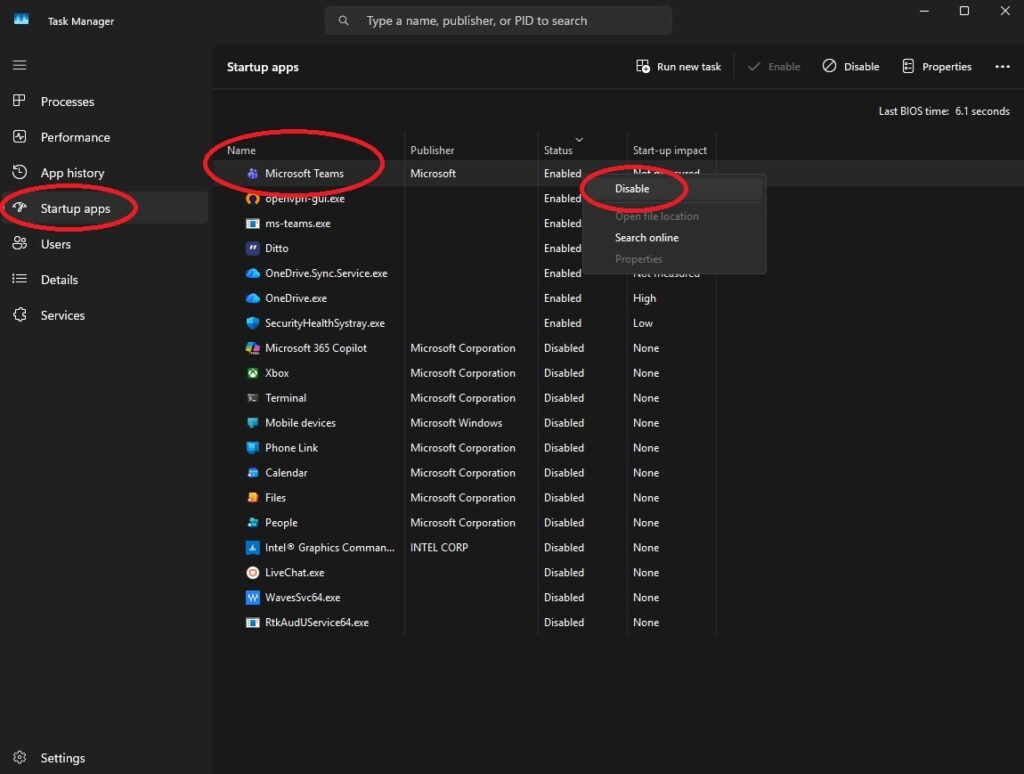
Todo this, right click the task bar at the bottom of the screen, anywhere that does not have apps or just right click the Windows button and select “Task manager”
Click “Startup apps”, and next read through all the apps listed. You will see a long list of apps listed here and on the middle of the screen you will see “Status” these will likely be set to “enabled”, but you can right click any of the ones you do not need to start up everytime the computer does, you can set them to “disabled”. This does not mean it will be permanently disabled but it will not start every time Windows loads. For example, Microsoft teams is common to load up every time but you may not need it so you can set it to disabled, and once you need the app just click the icon on your desktop or searh for it and it will then open.
3. Clean up storage space
Storage space can sometimes make your computer much slower (please be careful when deleting anything on your computer)
- Delete unused apps
- Delete Large videos you do not need or move them to a cloud storage (like google drive etc) if you want to keep them
- The “Downloads” folder, this is something people do not think about but often has a large amount of unused files
Your computer has a lot of temp files, things it probably does not need, to access the majority of these, hold down the Windows Key + the letter R.
You should see a box pop up called the “Run” box, in here you can type “%temp%” and you will see a lot of files open, you can then select all of these by dragging or hold down “Control +A” on the keyboard to select all the files and then press delete.
After you have done any of the above please go to the recycling bin on your desktop, right click, and select empty to delete any files that have been moved there.
Pro Tip
There are special programs you can download to view your storage in a visual aspect to visually see big files and where they are. One of the best programs would be on called “Windows Directory Statistics” or also called “WinDirStat” which you can download from https://windirstat.net/ Be safe when downloading anything online.
4. Upgrade your old Hard Drive
A lot of older computers and unfortunately some newer ones still use a “Hard Disk Drive” or HDD, this is a slow and physical mechanical way of storing data. One of the main ways to improve an old computers speed is to install an SSD or known as a “Solid State Drive”.
Doing this is a simple upgrade but when swapping out your old Hard Drive for an SSD you will lose all your data. To prevent this, something like a Samsung SSD when installed along side your main Hard Drive can move all of your data over very easily. You can often see multiple times improvements in speed from this fairly cheap upgrade.
If you are not sure on how to do this or want to make sure all of your data is safe, then please call or email us for one of our engineers to do this for you.
5. Update your Operating System / Software
Sometimes out of date software or operating systems can cause slow downs and often lower your computers security. Below are some things to check to try and solve this and easily update what you need.
- Windows Operating System – Check your settings app for “Windows Update” and click “check for updates” then click install.
- Big software – This is the main large software you computer uses, things like the Adobe suite or any work applications.
Usually just opening a lot of apps prompts you to update anyway and when asked its a normally a good idea to let it do its updates. For things like windows update, please backup all of your data first and enable “restore points” for your PC so if it does fail or not work you do not lose anything. This is a common IT support issue we get called out for a lot as Windows updates fail often.
6. Scan for Malware
Below are 2 of the most common anti malware programs we deploy or see. We do not make any money currently from listing these it is just making you aware that many programs exist.
- Malwarebytes
- BitDefender
Many Solutions like Malwarebytes come with a free version for ever and a free trial for the premium version. It is a great way to test many programs you do not want to pay the full price to yet before making sure it is the right program for you.
Scanning for malware can improve system performance by a small amount if not much is going on within your computer but on the other hand it can be night and day difference between a computer that runs as it should or very slow with many popups on browsers or when using the computer. Many of these can also have things like crypto miners built in or just simply something taking up background useable like a botnet. When you clean up all of the malware on your system it makes it more secure and faster. It is really an easy choice to always make sure your computer is protected.