

This is a guide for the easiest ways for you to learn how to check your computer specs on Windows 10 and 11, including your processor, RAM, storage, graphics card, and Windows version.
1. Task Manager
This is the easiest way to find the computer specs in Windows. There is a few ways to open task manager which we will list below.
- Right click the Windows task bar at the bottom and click “Task Manager”
- Hold down “CTRL + Shift + ESC” and you will see Task Manager pop open
- Hit the Windows Key or click the Windows icon in the bottom bar and type “Task Manager”
Common Mistake
In Windows 10 when you first open Task Manager it will be in minimal mode, click the drop down looking arrow in the bottom left that said “More details” that will then show you the actual information you need.
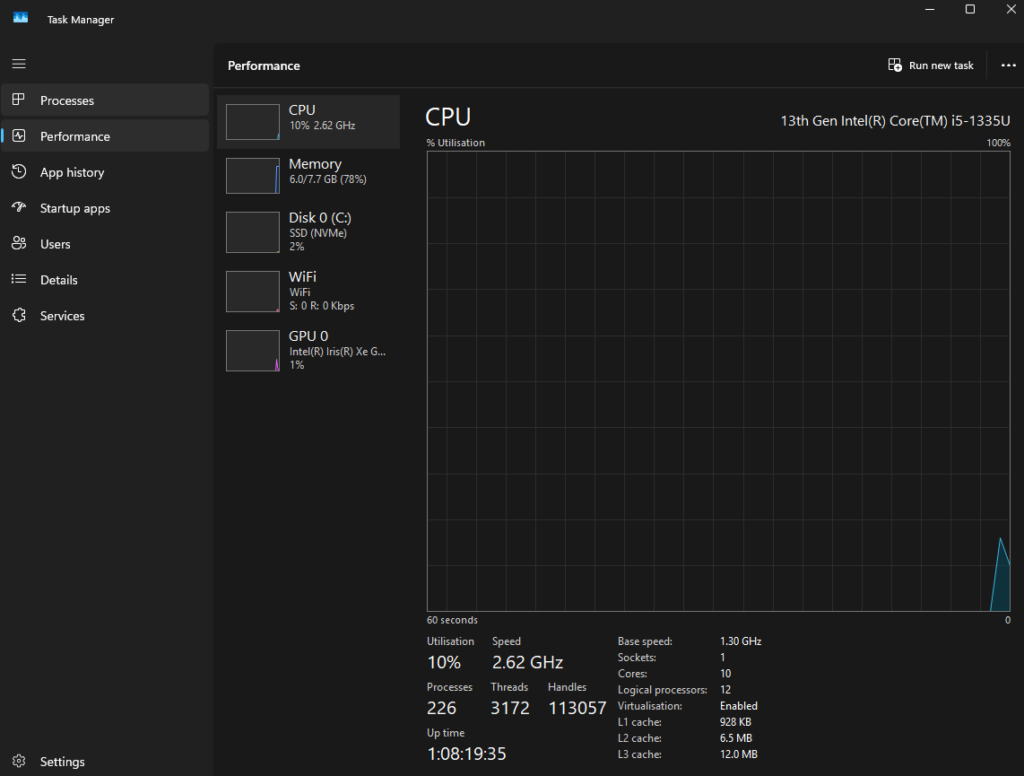
Once task manager is open click on “performance” and it will then show your system specs. It will list CPU, Memory, Disk (or multiple if you have more than 1), WiFi and or Ethernet, GPU if you have one.
2. Check your specs using Windows Settings
Go to your settings and select “System” and then click “About” at the bottom of the list and this will then show similar information as before. the difference here is that it shows the Windows version too, for example you may see “Edition Windows 11 Pro” along with the Windows version and the exact OS build. This information can be helpful for troubleshooting or just finding what version you are using.
3. Use the System Information
This is slightly more complicated and not needed for just checking what is inside your PC but some professionals may find this useful.
To find your specs using System Information, press “Windows key + R” at the same time and a box will open called the “Run” box. In the newly opened box type in”msinfo32″ after that press Enter. In the System Information program that opens you will see a lot of information so just look for what you need.
On the left hand side of this you will see expandable tabs to look further into more details. They are “Hardware Resources” , “Components” and “Software Environment”.
Pro Tip
Checking the specs of your computer can help to see if it can run Windows 11 or if it may need more RAM or storage. It is also useful for telling an IT Engineer what is inside your PC helping them to diagnose your issues.