
This guide shows you how to control your PC remotely from Anywhere Using Google Chrome so you can control it from any other computer or even your phone. Follow the easy step by step instructions below but if you ever need help setting this or a more in-depth deployment, give us a call.
1. Downloading The Software
There is 2 ways to do this easily, we will list both here so just pick the one you find easier depending on your device.
Method 1) go to remotedesktop.google.com and click “access my computer” and then click the blue download arrow button to be redirected to the google extension store, once there you will need to click add to chrome button on the extension and it will then install.
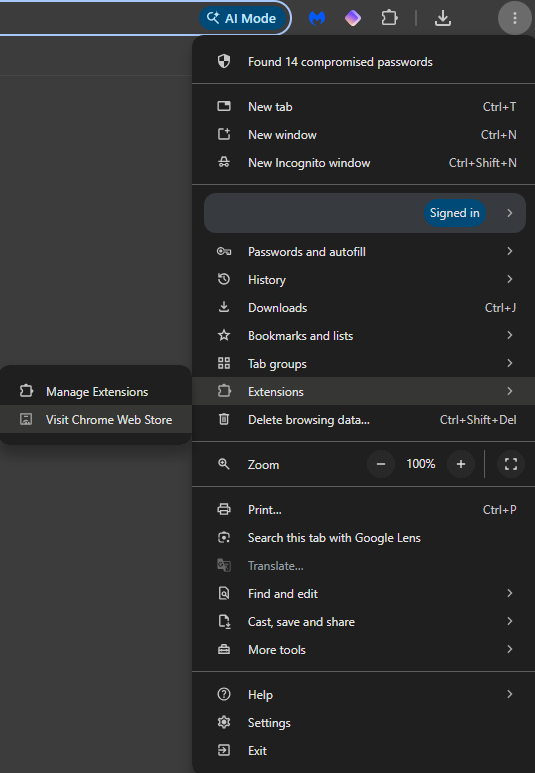
Method 2) skip going to website and click the 3 dots in the top left of Chrome, then extensions, then “visit Chrome web store”. Once in the store at the top search bar, type in “Chrome Remote Desktop”, please see the images below for some help.
Common Mistake
WAIT – A lot of people are not careful about the remote access software they install and this can be one of the worst virtues to have. Look at the image below to confirm this is what you see in the extension store. At the time of writting it is published by “Google Ireland, Ltd” and has 36,000,000 users. If the one you are looking at is different from this DO NOT install it.

Now you have found the software and added it to Chrome, look in the top right for a puzzle piece. This is where your extensions live. Please then click “Chrome Remote Desktop and it will redirect you to a page that said “Set up remote access”.
Please then click “Accept & Install”. A file explore window should open with a program called “chromeremotedesktophost”, double click this to run it and allow any prompts that pop up. Well done it is now installed.
2. Setting Up The Software
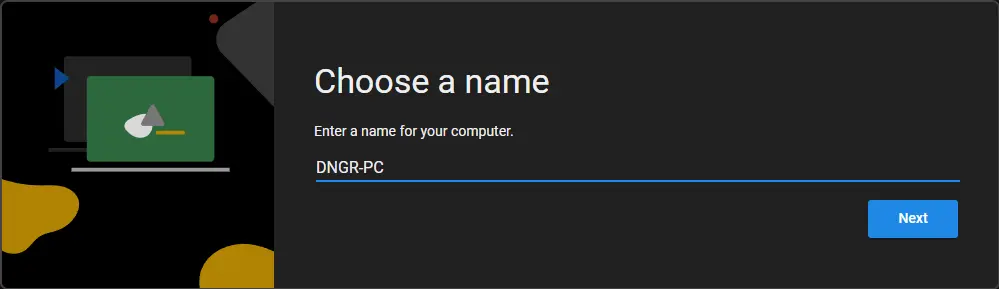
You have now installed it and should of been redirected to a new page, or it should of opened for you. It will say “Choose a name”, at this point enter what you would like your computer to be called as you can see in the image below. (Dont worry this does not matter what you call it)
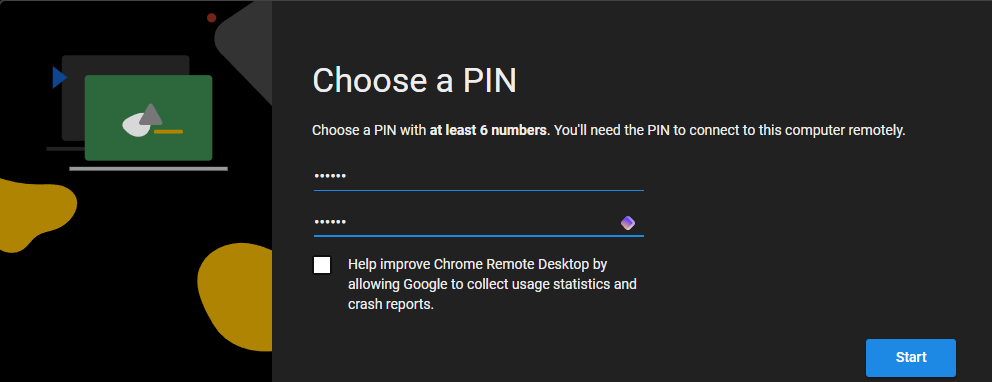
Once a name has been entered then click next. You will then see the image below. Please make up a 6 digit pin. DO NOT SHARE THIS WITH ANYONE if you do not trust them. Make sure it is a secure pin so do not use 000000 or 123456 as it should be something hard for someone to guess. Once complete click “Start”.
3. How To Use The Remote Desktop Software
Now a box may of popped up please just allow that so you can finish everything up.
You can now head to (if not already open) remotedesktop.google.com/access this is how you will be able to access your remote PC.
You will then see a screen with the name of your computer. On the left hand side of the screen you will see “Remote Access”, here is the full list of all of the PC`s you can control if you have more than one. At this point you should see the name of the computer you just setup and that means it has worked.
There are a few ways to now control this computer from other devices, we will list some common ones below:
- A Smartphone
- Another PC
- A Tablet / IPad
Pro Tip
If the screen of what you are connecting too is much larger or has a very different resolution than connecting to it with something similar can often be easier. For example if you want to connect to a Windows 11 PC from your phone that’s fine but you may need to increase the zoom to easily read everything. Try connecting using a Chromebook or laptop or even a tablet to make it easier to use the device.
How to connect to the PC from these devices? Go to Google Chrome on your chosen device and go to the same website as before, remotedesktop.google.com/access. Once here sign in with your Google account if you are not already. If on a smartphone it may ask you if you want to download the Remote Desktop app. This is your choice and we would recommend it for ease of use and it can often improve performance but it is not required.
Now you will see “Remote Devices” at the top of the page, this should list the name of the computer you setup earlier. Simply click on the name and it will then prompt you for the pin you setup in step 2.
Type in your pin and you will see the screen of the computer you have just set up. That was it. It is now fully configured and you can control your pc from anywhere using google chrome.
Support / Helping Us
We may ask you to look at this guide so we may assist you remotely. Following this guide enables us to help you without you having to go anywhere. Pleas checkout our page here, DNGR Remote Support to see some of the issues we may be able to help you with using tools like this.