

This guide shows you how to check laptop battery health windows 11. (This also works for windows 10 too) Recharging your laptop’s battery slowly damages / lowers it overall health. Signs for this may be battery not lasting as long as it did before or having to always keep it on charge. This guide will teach you how to check the laptop’s battery health and what this actually means. This guide is made to be simple but if you need any remote support we can help.
1. How to get the battery report
First hit the Windows key or click the search bar and type “CMD”, next when this pops up please click “run as administrator” or right click it and select “run as administrator.
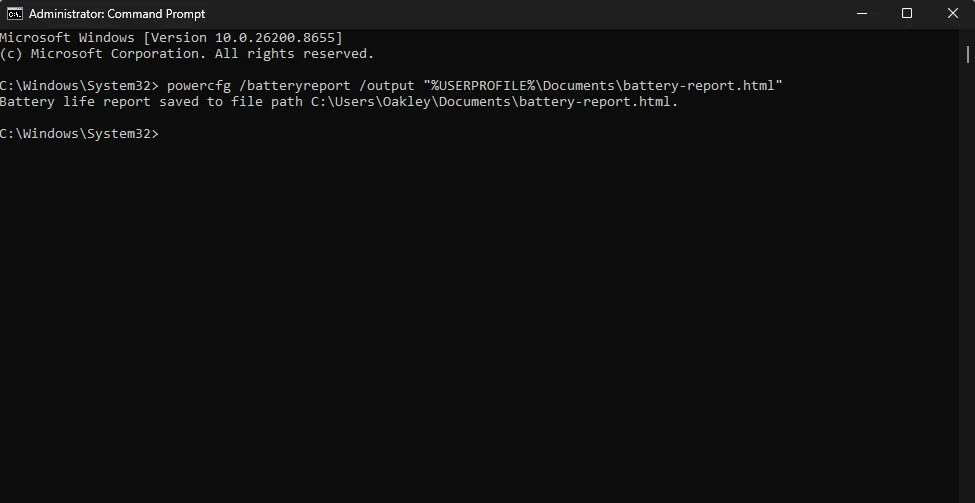
Now the command prompt is open please paste this command in powercfg /batteryreport /output “%USERPROFILE%\Documents\battery-report.html”. This will generate a file location in the command prompt which we will use next. See the image below for reference.
Common Mistake
DO NOT RUN COMMANDS YOU DO NOT UNDERSTAND OR TRUST THE SOURCE OF. Unknown commands from the internet could cause damage or give unexpected responses please be careful.
2. Reading the battery health report
Now look at the command prompt window, and you will see something like “C:\Users\John\Documents\battery-report.html”. This is the location of the file, please copy and paste this. To do this select / highlight using your mouse the line that looks like this which is generated. Now press “Control + C” so this will copy the report which you will need. Now open the File Explorer in windows and go to the top bar (not the search bar but the bar with \ for directories). Now you will need to paste the line you just copied by pressing “Control + V” to paste this which will open a web browser file.
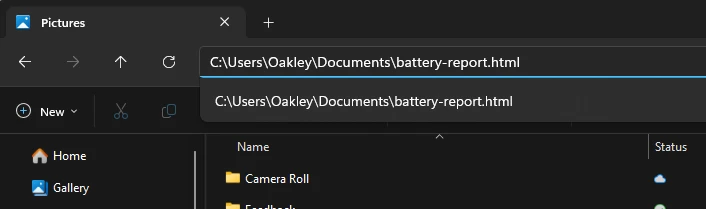
Now once you press enter it will open the file you need which will likely open in Google or Microsoft Edge or whatever your default program is.
You will now want to scroll / look down in the report slightly as there is a lot of information in this report but we only care about a few things. Under “Installed Batteries” look for “DESIGN CAPACITY” and “FULL CHARGE CAPACITY” as these are what we will need for this.
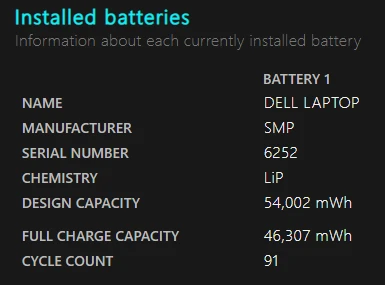
As you can see in the image above one number is much bigger than the other. The bigger number or “DESIGN CAPACITY” is what the laptop came with when it or the battery was new. The “FULL CHARGE CAPACITY” is what it is currently capable of charging up to. Ideally they should be within 20% of each other as a general rule of thumb to not make it feel like you are always having to charge it.
Pro Tip
There is a lot of useful information in this report like battery life estimates. Also have things like the battery capacity history. Don’t get overwhelmed by the amount of information just focus on what we touch on here to keep it simple.
When to replace your laptop battery
We use the 80% rule. If your laptop is less than 80% of its total capacity then we would look to replace it for a new one.
Some good ways to help extend the battery life are:
- Keeping the laptop between 25% and 80% charge when possible. (This includes not always keeping it on charge as that can reduce battery lifespan over time)
- Keep the laptop cool as batteries don’t like to be super warm. This can be helped by cleaning it if you are comfortable opening it up to clean fans etc.
What we can do to help
Our engineers can replace and source a new battery if your device has bad battery health. This is typically a simple and quick job, meaning our engineers can be in and out quickly making it easy for you to get the laptop back to its long battery life.